
How to Convert Numbers to Words in Excel Using VBA
Convert numbers to words in Excel with a reusable VBA function and a simple add-in. This illustrated guide explains every stage, from opening the Visual Basic Editor to displaying written amounts in invoices, receipts and reports.
Microsoft Excel does not provide a general built-in English number-to-words worksheet function. In this TechBikash28 guide, you will learn how to build an Excel number to words formula, save it as an .xlam add-in and generate wording in both international and Indian currency formats.
Why Convert Numbers to Words in Excel?
Businesses often need to display a number and its written equivalent in the same document. When employees manually type amounts in words, the text can become inconsistent if the original figure changes. The ability to convert numbers to words in Excel helps maintain a clear relationship between a calculated amount and its written description.
For example, an invoice may contain an amount of ₹12,345.50. Using a custom VBA function, the words can be generated from the same cell rather than typed separately. This approach is particularly useful for finance, purchasing, administration, quotation templates and payment vouchers.
Put 1234.50 in cell A2, then enter =RupeesInWords(A2). Expected result: Rupees One Thousand Two Hundred Thirty Four and Fifty Paise Only.
This number to words in Excel VBA method is designed for learners who want a practical example of business automation, not just a formula to memorise.
Convert Numbers to Words in Excel in 4 Easy Steps
To convert numbers to words in Excel, first create the custom function in a standard VBA module. Then save it as an add-in, enable the file and call the new function from any supported worksheet. The screenshots below show the main Excel menus.
Enable the Developer Tab
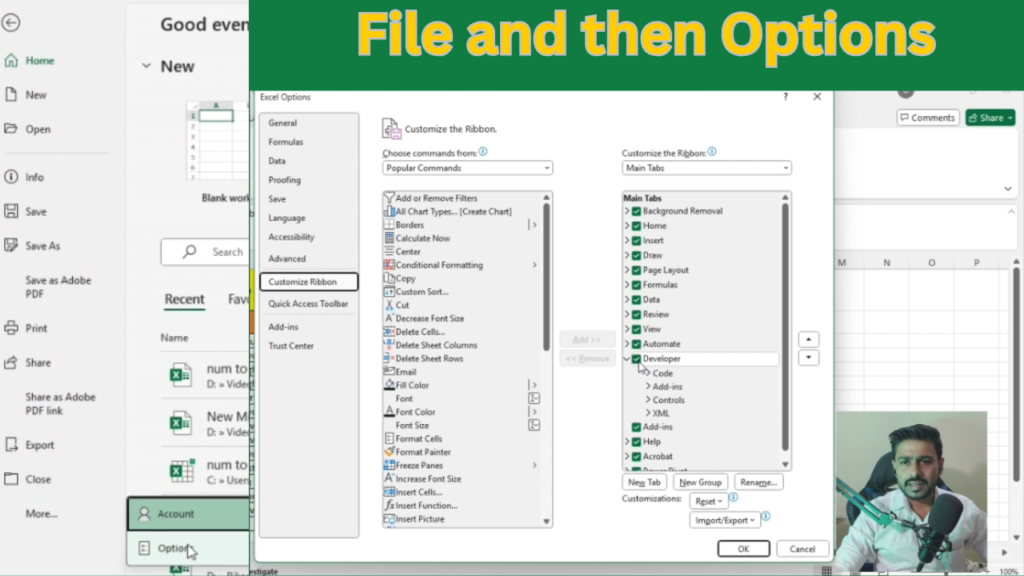
Open Excel and choose File → Options → Customize Ribbon. In the Main Tabs list, enable Developer and click OK. If the Developer tab is already visible, you can skip this action.
Open the VBA Editor and Insert a Module
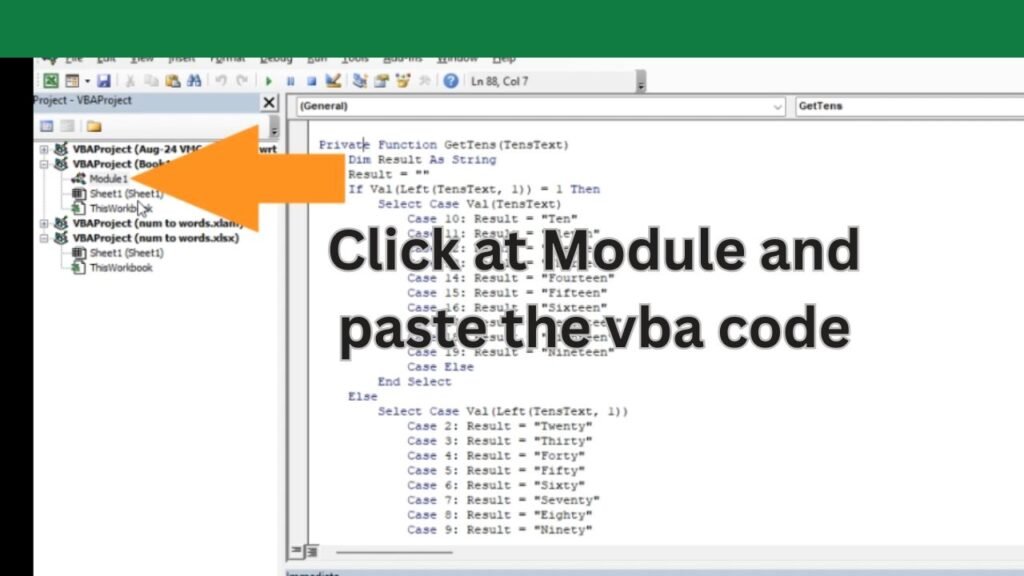
Press Alt + F11, or select Developer → Visual Basic. In the VBA Editor, select the workbook and choose Insert → Module. Paste the complete code from the section below into this standard module, not into Sheet1 or ThisWorkbook.
Save the Code as an XLAM Add-in
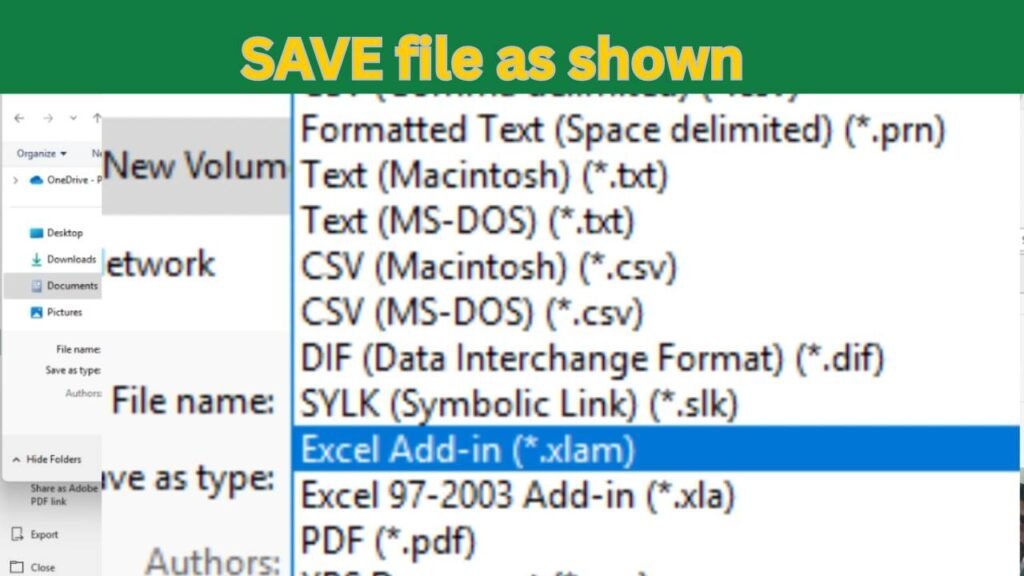
Return to Excel and select File → Save As. Choose Excel Add-in (*.xlam) as the file type. Name the add-in NumberToWords_Excel.xlam and save it in a permanent, trusted folder. Excel must be able to locate this file whenever the add-in loads.
Enable the Add-in and Enter the Formula
Open File → Options → Add-ins. At the bottom, select Excel Add-ins under Manage and click Go. Click Browse, select your saved XLAM file and tick its checkbox. Return to the worksheet and use either function:
International format: =NumberToWords(A2)
Indian currency: =RupeesInWords(A2)
The original four image links supplied for this tutorial all pointed to the same thumbnail. The activation instructions above are therefore presented as text rather than showing an unrelated screenshot.
Once enabled, the custom function can help you convert numbers to words in Excel without manually retyping an amount each time it changes.
Number to Words in Excel VBA — Complete Copyable Code
This working example defines two worksheet functions. NumberToWords uses Thousand, Million and Billion. RupeesInWords uses the Indian grouping system and returns Rupees and Paise. Copy the entire module below into the standard VBA module you created in Step 2.
When adding the number to words in Excel VBA module, do not replace regular double quotes with curved quotation marks. Standard quotes are required for valid VBA statements.
Excel Number to Words Formula — Examples and Outputs
Once the add-in is active, the Excel number to words formula behaves like a custom worksheet function. It reads the amount in the referenced cell and returns a text result. These examples demonstrate how to convert numbers to words in Excel for general figures and currency amounts.
| Formula | Expected output |
|---|---|
=NumberToWords(0) | Zero |
=NumberToWords(125) | One Hundred Twenty Five |
=NumberToWords(1234.50) | One Thousand Two Hundred Thirty Four and 50/100 |
=NumberToWords(1250467) | One Million Two Hundred Fifty Thousand Four Hundred Sixty Seven |
=RupeesInWords(1234.50) | Rupees One Thousand Two Hundred Thirty Four and Fifty Paise Only |
=RupeesInWords(1250467) | Rupees Twelve Lakh Fifty Thousand Four Hundred Sixty Seven Only |
=RupeesInWords(0.01) | Rupees Zero and One Paisa Only |
For real workbooks, replace the numeric argument with a cell reference such as A2. If the cell value changes, Excel can recalculate the function when workbook calculation is enabled.
Number to Words in Excel Indian Format: Rupees and Paise
The number to words in Excel Indian format differs from the international system because it groups larger figures into Lakhs and Crores rather than Millions and Billions. This distinction matters when preparing Indian invoices, cash vouchers and other financial records.
For example, 1250467 is written as Twelve Lakh Fifty Thousand Four Hundred Sixty Seven in the Indian system, while the international version uses One Million Two Hundred Fifty Thousand Four Hundred Sixty Seven. The RupeesInWords function also converts two decimal places into Paise.
Enter =RupeesInWords(A2) in your amount-in-words field. The number to words in Excel Indian format function will display a Rupees-and-Paise result instead of international number names.
Using this function to convert numbers to words in Excel is convenient for invoice templates, but always review the generated output if the values are used on cheques, legal forms or regulated financial documents.
Troubleshooting Number-to-Words Formulas
If your Excel number to words formula does not work immediately, check the add-in status before editing the code. The most common issues involve disabled add-ins, incorrect function names and inputs that are not numeric.
| Problem | What to check |
|---|---|
#NAME? | Confirm the add-in is enabled and the function name is spelled correctly. |
#VALUE! | Use a supported numeric value, not text or a blank cell. |
| Macros blocked | Check the file’s trust status and your organisation’s macro policy. Do not bypass security restrictions. |
| Missing after reopening | Check that the XLAM file has not moved and is enabled in Excel Add-ins. |
| Excel in browser | Open the workbook in desktop Excel, which supports VBA functions. |
Microsoft’s Excel VBA documentation provides further reference material. For another Excel reporting technique, see the TechBikash28 Excel Consolidate tutorial.
Watch: Convert Numbers to Words in Excel Tutorial
Prefer a visual walkthrough? Watch the TechBikash28 tutorial by Bikash Sarangi to see how to convert numbers to words in Excel, enter a function into the worksheet and understand the add-in process. The updated code in this article also adds a separate Indian currency function.
Watch the Complete YouTube TutorialTechBikash28 Excel Web Stories
Explore short visual lessons that complement this convert numbers to words in Excel guide, including quick demonstrations of Excel lookups, Consolidate and dashboard development.
More Excel Videos for Practical Learning
After learning to convert numbers to words in Excel, continue with these videos on formulas, sorting, filtering, lookup functions and interactive reports. Each lesson is part of the TechBikash28 practical learning collection.
Frequently Asked Questions
Does Excel have a built-in number-to-words formula?
No. There is no general built-in function for this purpose. You can create an Excel number to words formula by adding a custom VBA user-defined function.
Can I convert numbers to words in Excel without VBA?
Alternative methods include add-ins and custom solutions, but this tutorial specifically explains the VBA method because it is reusable in desktop Excel.
How do I convert amounts to words in Indian currency?
Use the number to words in Excel Indian format function =RupeesInWords(A2). It supports Lakhs, Crores, Rupees and Paise.
Can I use the add-in in multiple workbooks?
Yes. Once the XLAM is installed and enabled, Excel can use its public functions across workbooks on the same installation.
Does the VBA code work in Excel Online?
No. Excel for the web does not execute VBA. Open the workbook in desktop Excel instead.
Can I run this code in Google Sheets?
Not directly. Google Sheets requires an equivalent Google Apps Script function rather than VBA code.
Conclusion: Build Useful Excel Automation Skills
Knowing how to convert numbers to words in Excel demonstrates a simple but useful approach to business automation. By building an XLAM add-in, you can reuse a consistent function across compatible Excel workbooks and reduce repetitive typing in routine reporting tasks.
At TechBikash28, the aim is not only to share the number to words in Excel VBA code but also to explain the business reasoning behind a practical solution. These small lessons help learners understand how development tools can support real operational needs.